



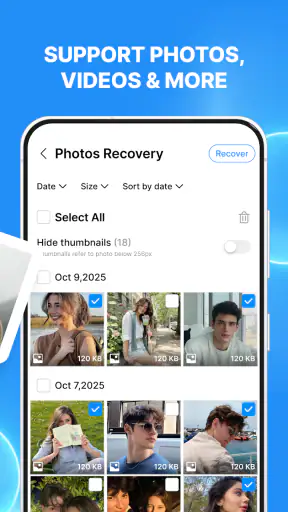
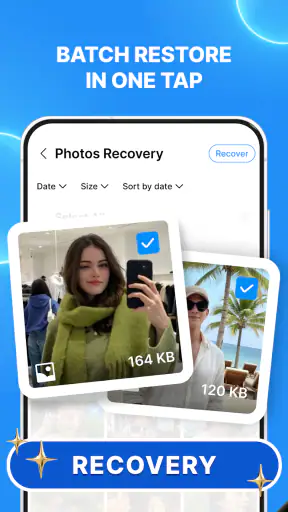
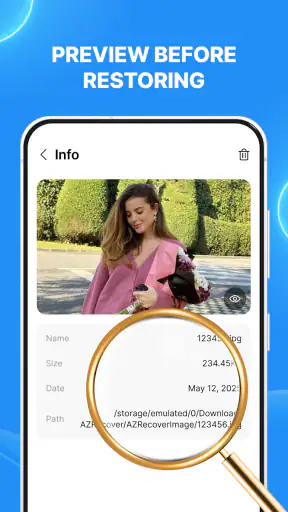
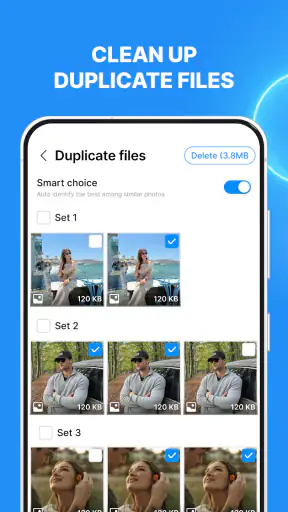
When a photo disappears from my phone, I want a recovery tool that is quick to understand and careful enough not to make the situation worse. Recovery Lost Photos & Videos, from BitCraft Tools, is built around that simple need. It is a free Android utility for looking for deleted photos, videos, and other files in storage that the device still allows it to access, including an SD card. I tested it with the mindset of someone who has just removed something important rather than someone who wants a complicated technical toolkit, and that distinction matters.
The app is currently on version 1.3.1 and has reached over five million installs, with an average rating of 4.2 from roughly eight thousand ratings. Those figures suggest that it has found a practical audience, but they should not be read as a promise that every deleted file can be restored. Recovery depends heavily on what happened after deletion, where the file was stored, and whether the phone still exposes the relevant storage area. My experience is that this is best treated as a first-response tool: try it soon, preview what it finds, and avoid filling the device while you are searching.
How Recovery Lost Photos & Videos feels in everyday use
A focused starting point for an urgent problem
The strongest part of the app is its clear purpose. It sits in the Tools category rather than trying to become a gallery, cloud service, file manager, or general phone cleaner. That focus makes sense when I am looking for one accidentally removed picture or a group of videos that vanished after a cleanup. Instead of beginning with a long explanation, I can move directly toward scanning accessible storage and reviewing possible matches.
That simplicity is useful for people who do not normally work with folders or file systems. A family member who deletes a set of holiday photos by mistake is more likely to understand a recovery-oriented screen than a desktop-style utility full of technical labels. The Everyone content rating also fits that broad audience. I would still explain the process before handing the phone to a less confident user, because recovery results can be confusing when filenames, thumbnails, or dates no longer look exactly as expected.
The app is not magic, and its wording should be interpreted carefully. “Deleted” does not always mean “still recoverable.” On modern phones, a file may be removed from the visible gallery while remnants remain somewhere the app can inspect, but another file may already have replaced that space. A successful scan can therefore produce a mixture of useful candidates, incomplete items, duplicates, or files that look familiar but are not the original version. That is normal for this type of utility, not necessarily a sign that the scan failed.
The workflow I would use first
If I had just lost a picture, my first step would be to stop taking new photos and avoid downloading large files. This is one of the most important practical details, because new data can occupy storage areas that might otherwise contain recoverable fragments. I would then open the app, allow it to examine the storage it can reach, and wait for the scan rather than repeatedly starting over.
Once results appear, I would not immediately select everything. I would look for recognizable thumbnails, compare nearby images, and separate personal photos from cached artwork, screenshots, messaging attachments, and other clutter. Recovery tools often find more than the user expects because phones store many visual files outside the main camera folder. A slower review at this stage is worthwhile: restoring a large pile of irrelevant items can make the next step harder and consume the free space needed to save the files that actually matter.
For an everyday scenario, imagine deleting a video after moving it to an SD card and then discovering that the transfer did not finish. I would check the card as well as the phone’s accessible internal storage, because the missing file may be in a different place from where I remember seeing it. I would also keep the card in the same device during the first attempt and avoid recording new footage to it. That workflow gives the app the best practical chance without requiring specialist computer software.
Where the app is genuinely useful
Its most convincing use case is accidental deletion that happened recently, especially when the file was stored on removable media or remains visible to the operating system in some recoverable form. It can also be handy after a hurried gallery cleanup, an incorrect folder deletion, or a failed attempt to organize media. People who regularly exchange images through messaging apps may appreciate the broader file search because the copy they need might not be in the camera directory.
I also see value for users who want to try a phone-based solution before connecting the device to a computer. Desktop recovery software can offer deeper controls, but it usually brings extra steps: installing a program, connecting the phone correctly, identifying the right storage, and sometimes dealing with device-specific access requirements. Recovery Lost Photos & Videos is more approachable when the priority is a quick first attempt rather than a forensic investigation.
That convenience has a trade-off. A phone app can only work with storage that Android exposes to it, and the depth of its search is not the same as a specialized recovery service. If the missing material is irreplaceable, the phone has been heavily used since deletion, or the storage itself is failing, I would not rely on this app alone. I would preserve the device state and consider a professional or desktop-based approach instead.
Understanding the free model before starting
The app is free to install, which makes it easy to try without committing money at the beginning. There are in-app purchases ranging from about ten dollars to fifteen dollars per item, so I would pay attention to what an upgrade unlocks before confirming anything. A recovery app should make the user feel confident about the actual files found before spending money, not push the user into buying an option simply because the scan feels urgent.
My advice is to treat the free experience as an evaluation stage. First confirm that the scan reaches the relevant storage, that the results include recognizable material, and that the recovery process produces usable files. If the app displays a preview, I would use it as a quality check rather than assuming every thumbnail represents a complete original. A blurry preview, an oddly short video, or an image with missing areas may indicate that the result is only partial.
This is also where expectations matter. Paying for a recovery feature cannot recreate data that has already been overwritten. It may remove a limitation or provide an additional action, but it cannot change the physical condition of the storage. I would only consider an in-app purchase after identifying a result that is genuinely valuable and after checking where the restored copy will be saved.
What the current version tells me about the product
Version 1.3.1 is the current release, while the app’s release date is January 6, 2026. That gives the product a relatively recent starting point, so I view it as a developing utility rather than a long-established recovery suite. The important question is not simply whether the version number looks new; it is whether the present workflow is stable enough for a stressful, one-chance situation.
From a user’s perspective, a newer release can be encouraging when Android storage behavior changes or when developers refine how scans and results are handled. At the same time, I would avoid assuming that a recent version has solved every compatibility issue. Recovery is especially sensitive to device model, Android storage rules, file type, and whether the item was held on internal memory or removable media. The app’s current state is promising for straightforward cases, but I would still keep a second plan for valuable files.
The developer, BitCraft Tools, has positioned this as a practical tool rather than a broad media-management product. That is reflected in the narrow task and in the way I would use it: open it when something is missing, scan carefully, recover selectively, and then return to a normal backup routine. I would not use it as a substitute for regular cloud synchronization or manual copies.
How existing users may notice the product’s evolution
For someone already using the app, the move to version 1.3.1 is most relevant as a sign that the product is still being maintained and refined. I would expect the value of an update to appear in small practical details: a smoother scan, clearer result handling, or better behavior across the storage locations the app supports. I would not describe any particular improvement as confirmed unless it is visible in the installed experience, because recovery tools can change internally without producing an obvious new feature.
Existing users should also revisit their habits after updating. A scan that worked for a recent gallery deletion may not be equally useful for an old file, a large video, or media removed from a different storage location. I would keep the app installed only if I am comfortable with its access and recovery workflow, and I would avoid treating an update as a reason to test the app on important data. The best test is a nonessential file, not the only copy of a family recording.
One useful habit is to save recovered files to a clearly separate location and rename them only after confirming that they open properly. If several similar candidates appear, I would preserve the originals first and organize later. This prevents a rushed cleanup from accidentally deleting the recovered copy or confusing it with a damaged duplicate.
Important gaps and situations where I would skip it
The biggest limitation is inherent to phone-based recovery: accessible storage is not the same as every byte that has ever existed on the device. If Android no longer exposes the relevant area, if storage blocks have been reused, or if the file was never fully written, the app may not be able to help. This is why I would try it early, before installing games, recording video, or downloading offline media.
I would also skip this app as my only plan when the missing files are business records, legal evidence, or the sole copies of irreplaceable footage. In those cases, repeated scanning and ordinary phone use can complicate later recovery. A specialist service or a carefully controlled computer workflow may be more appropriate, even if it is less convenient.
Users who already have reliable backups may not need a recovery tool very often. Checking a cloud photo service, a computer backup, a messaging conversation, or the device’s trash folder may be faster and safer when those options contain the original. Recovery Lost Photos & Videos is most useful when those normal routes have failed or when the file was removed before synchronization completed.
Privacy is another reason to be deliberate. A recovery scan can surface personal images that are not currently visible in the gallery, including old attachments or cached media. I would run it on my own device, review results privately, and remove unwanted recovered copies afterward. I would also avoid sharing a scan screen that contains sensitive thumbnails.
What I would watch as the app develops
I would watch how consistently the current version handles different storage situations, particularly the contrast between internal memory and an SD card. Clearer explanations of scan scope would be valuable because users need to know what the app is actually examining before they interpret an empty result. Better filtering by file type, location, or likely quality would also reduce the time spent sorting through irrelevant candidates.
I would also pay attention to the balance between the free experience and the in-app purchase options. A fair recovery workflow should let people determine whether useful files are present before they commit to a paid action. Transparent previews and clear save behavior would matter more to me than a long list of extra controls.
The app’s audience size gives it a useful testing base, but popularity alone cannot answer whether it will recover a particular file. I would judge future updates by practical reliability: fewer confusing results, safer saving, clearer storage boundaries, and better guidance for cases where recovery is unlikely. Those changes would make the tool more trustworthy without pretending that deleted data is always recoverable.
My recommendation after using it
I recommend Recovery Lost Photos & Videos as a sensible first attempt for recent accidental deletions, especially when the missing media may still be accessible on the phone or an SD card. It is free to try, aimed at an Everyone audience, and focused enough that a nontechnical user can understand the basic mission. The combination of a current version, a 4.2 average, and more than five million installs makes it a reasonable app to keep in mind, but not a guarantee of success.
My practical rule is simple: stop writing new data, scan early, preview carefully, and recover only what you can verify. That approach protects the chances of finding the original and prevents a cluttered result list from creating a second problem. I would use the app before reaching for more complicated tools when the loss is recent and the files are personal rather than critical.
For a deleted holiday picture, a misplaced video on an SD card, or media removed during a rushed cleanup, it can be genuinely helpful. For an old deletion, a failing device, or information that cannot be replaced, I would move quickly to a controlled backup or professional recovery route. In other words, Recovery Lost Photos & Videos is best understood as an accessible first responder, not a substitute for backups or specialist recovery.


